Transparent Background: How to Make Any Image Background Transparent
Transparent Background: How to Make Any Image Background Transparent
Want to make an image background transparent but not sure where to start? A transparent background remover takes any photo — a headshot, product shot, logo, or graphic — and strips away the background completely, leaving only the subject floating on a transparent canvas. The result can be layered onto any design without a visible rectangular border.
This guide explains how transparency works technically, which file formats preserve it (and which destroy it), how to create transparent images step by step, and the most common mistakes people make when working with transparency.
What Is a Transparent Background, Technically?
Every pixel in a digital image has color values — typically red, green, and blue (RGB). A transparent background adds a fourth value called the alpha channel. The alpha channel controls opacity: a value of 100% means fully visible, 0% means fully invisible, and values in between create semi-transparency.
When you remove transparent background areas from an image, you are setting the alpha channel of those background pixels to 0%. The pixels are still technically there in the file — they just render as invisible. This is why the file size of a transparent PNG can be similar to the original image.
The Checkerboard Pattern
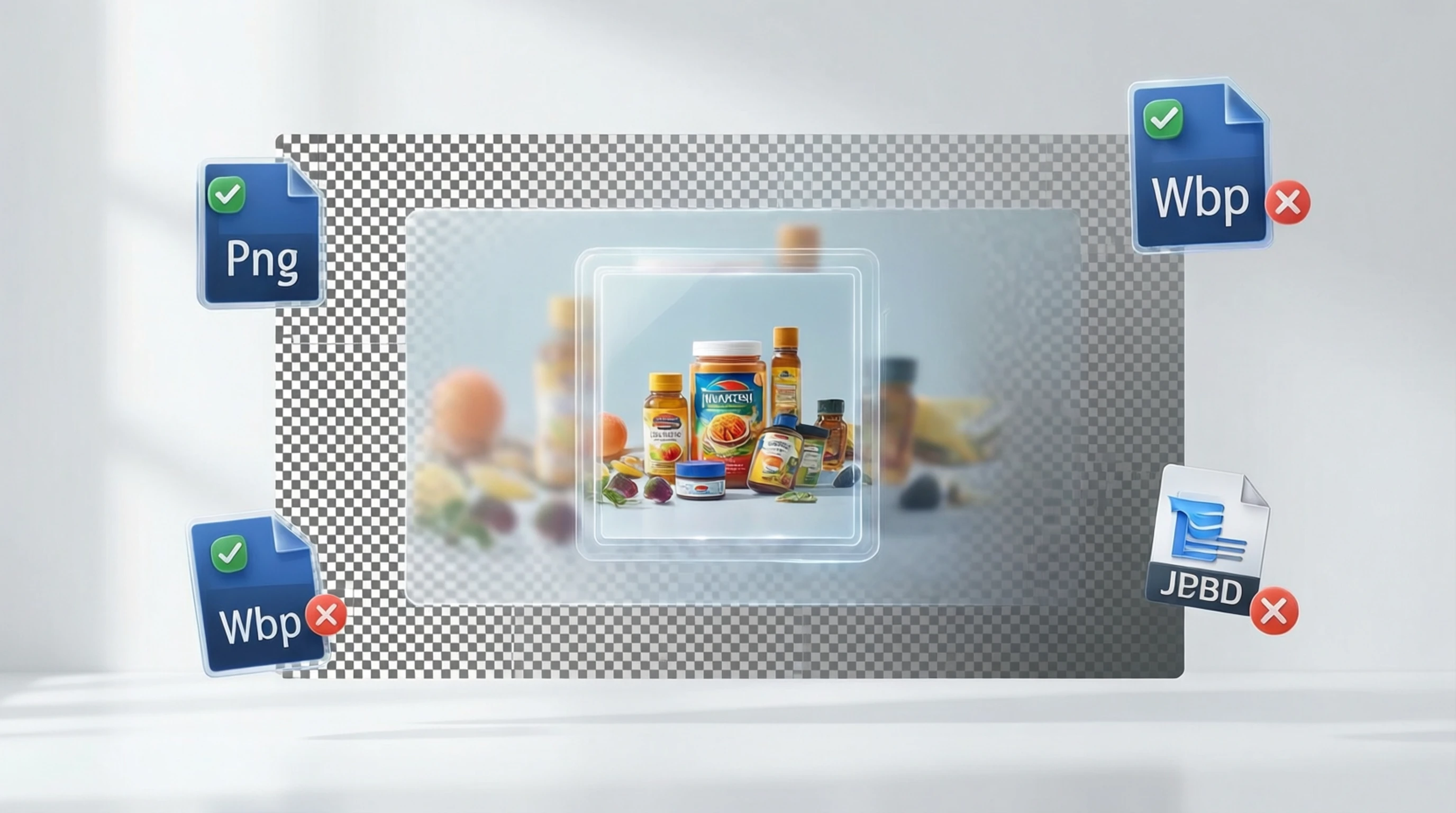
When you see a gray and white checkerboard pattern in an image editor, that is the universal visual indicator for transparency. Those squares are not part of the image — they are the editor showing you "nothing is here." When you place this image into another design, whatever is behind it shows through those transparent areas.
Why Transparency Matters
Transparent backgrounds give you creative freedom. Instead of being locked into a rectangular photo with a fixed background, you get a flexible asset that works in any context:
- Layer subjects onto any background — colored, gradient, patterned, or photographic.
- Integrate into designs — slides, posters, websites, and documents without visible photo borders.
- Create professional graphics — logos, icons, and UI elements that float naturally.
- Build composites — combine multiple transparent elements into a single cohesive scene.
Which File Formats Support Transparency?
This is where most people run into problems. Not every image format supports the alpha channel. Saving your transparent image in the wrong format will permanently destroy the transparency.
| Format | Supports Transparency | Best For | Notes |
|---|---|---|---|
| PNG | Yes (full alpha) | Photos, graphics, web | Industry standard for transparency |
| WebP | Yes (full alpha) | Web images | Smaller files than PNG, widely supported |
| GIF | Yes (binary only) | Simple graphics, animations | Only fully transparent or fully opaque — no semi-transparency |
| TIFF | Yes (full alpha) | Print, archival | Large files, not web-friendly |
| SVG | Yes | Vector graphics | Not for photos |
| JPG/JPEG | No | Photos for web | Transparency is impossible |
| BMP | No | Legacy use | No alpha channel support |
The JPG Trap
This is the single most common mistake when working with transparent backgrounds. JPG does not support transparency. Period. If you create a perfect transparent cutout and then save it as a JPG, every transparent pixel gets filled with a solid color — usually white or black. The transparency is gone permanently, and you cannot recover it from the JPG file.
Always save transparent images as PNG or WebP. If someone sends you a "transparent" image as a JPG, it is not transparent — it just has a white background that might look transparent on a white webpage.
How to Make Background Transparent: Step by Step
Step 1: Open the Transparent Background Maker
Go to Remove-Backgrounds.net in any web browser. The tool works on desktop, tablet, and mobile devices. No software installation, no account creation, and no payment required.
Step 2: Upload Your Image
Navigate to the upload page and drag your image into the drop zone, or click to select a file. The tool accepts JPG, PNG, and WebP files up to 50 MB. Even if your starting image is a JPG with a solid background, the tool will create a transparent version.
Step 3: AI Creates the Transparent Background
The AI model analyzes your photo in 2 to 5 seconds using deep learning. It identifies the subject — person, product, animal, text, or any object — and separates it from the background with pixel-level precision. The background pixels have their alpha channel set to 0%, making them fully transparent.
Fine details like hair strands, fur, semi-transparent fabrics, and soft edges are handled automatically. The AI preserves natural semi-transparency at edges rather than creating harsh cutlines.
Step 4: Download as PNG
Download your result as a transparent PNG. This is critical — PNG preserves the alpha channel that makes the background transparent. The downloaded file is full resolution with no watermarks.
How to Verify That Your Background Is Actually Transparent
After downloading your image, you might wonder whether the transparency is real or just a white background that looks transparent. Here are reliable ways to check.
Open in an Image Editor
Open the file in any image editor that shows transparency (Photoshop, GIMP, Figma, Canva). If you see the checkerboard pattern behind your subject, the background is genuinely transparent.
Place on a Colored Background
Drop the image onto a colored surface — a dark slide in PowerPoint, a colored artboard in a design tool, or a webpage with a non-white background. If the subject floats naturally with no white rectangle around it, the transparency is working.
Check File Properties
Right-click the file and check its format. If it says PNG or WebP, transparency is possible. If it says JPG or JPEG, there is no transparency regardless of how it looks.
Inspect in a Browser
Drag the file into a browser tab. Most browsers render transparent backgrounds as white, which is not helpful. Instead, open your browser's developer tools, set a dark background color on the page, and the transparent areas will become visible.
Common Mistakes When Working with Transparent Backgrounds
Mistake 1: Saving as JPG
This is worth repeating because it is the most common error. After creating a transparent background, saving the file as JPG permanently destroys the transparency. Always use PNG or WebP.
Mistake 2: Copying and Pasting Instead of Saving
Some applications convert clipboard contents to JPG during paste operations. If you copy a transparent image and paste it into certain programs, you may lose transparency. Always save the PNG file to disk and then import it into your destination application.
Mistake 3: Compressing with a Tool That Strips Alpha
Some image optimization tools or batch processors strip the alpha channel to reduce file size. Before running transparent images through any optimizer, verify that it preserves transparency in its output settings.
Mistake 4: Using GIF When You Need Smooth Edges
GIF supports transparency but only in binary — each pixel is either fully transparent or fully opaque. There is no semi-transparency for soft edges. This means hair, feathered edges, and anti-aliased curves will have visible jagged artifacts. Use PNG for anything with smooth or semi-transparent edges.
Mistake 5: Assuming White Background Equals Transparent
A white background and a transparent background look identical on a white webpage or white document. They are fundamentally different. A white background is a solid color that blocks whatever is behind it. A transparent background lets everything behind it show through. Always verify with the methods described above.
Best Use Cases for Transparent Background Images
Logos and Branding
Every professional logo should exist as a transparent PNG. This allows it to be placed on business cards, letterheads, websites, merchandise, and social media banners without a visible background box clashing with the design.
Product Images for E-commerce
Online sellers use transparent product photos to maintain consistent backgrounds across their entire catalog. Photograph products on any convenient surface, remove transparent background areas with AI, and place every product on a matching white or branded backdrop.
Web Design and UI Elements
Icons, avatars, decorative elements, and UI components all need transparent backgrounds to integrate cleanly into webpage layouts. Transparent PNGs and WebPs are standard assets in modern web development.
Social Media and Marketing
Create versatile marketing assets by making subject backgrounds transparent. The same transparent cutout can be placed on different seasonal backgrounds, campaign colors, or promotional templates without re-editing.
Print Design
Transparent images in print layouts allow text and graphics to wrap around subjects naturally. Brochures, catalogs, posters, and packaging all benefit from transparent assets that do not force rigid rectangular photo placement.
Frequently Asked Questions
Can I make a JPG background transparent?
You cannot add transparency directly to a JPG because the format does not support alpha channels. However, you can upload a JPG to Remove-Backgrounds.net, which will process it and output a transparent PNG. The tool converts the result to PNG automatically.
What is the difference between a white background and a transparent background?
A white background is a solid layer of white pixels that covers whatever is behind the image. A transparent background has no pixels — the alpha channel is set to zero, allowing anything behind the image to show through. They look identical on white surfaces but behave completely differently in designs.
Why did my transparent image turn white when I emailed it?
Some email clients and messaging apps convert PNG attachments to JPG to reduce file size. This conversion destroys the alpha channel. To preserve transparency, share the original PNG file via cloud storage links (Google Drive, Dropbox) rather than as email attachments.
Does making a background transparent reduce image quality?
No. The subject pixels retain their full original quality and resolution. Only the background pixels become transparent. The process does not compress, resize, or degrade the visible parts of your image.
Can I make backgrounds transparent on my phone?
Yes. Visit Remove-Backgrounds.net in your mobile browser, upload a photo from your camera roll, and download the transparent PNG. No app installation required. Make sure to save the result as PNG — some phone photo apps default to saving as JPG.
Make Your Background Transparent Now
Creating a transparent background used to require Photoshop skills and careful manual work. Now, the AI at Remove-Backgrounds.net does it in seconds — with cleaner edges and proper alpha channel handling that preserves semi-transparent details like hair and soft edges.
Upload any photo, let the AI remove transparent background areas, and download a publication-ready PNG. No signup, no watermarks, no software to install. Just drag, drop, and download.