Remove Picture Background: Easy Free Tool for Any Picture
Remove Picture Background: Easy Free Tool for Any Picture
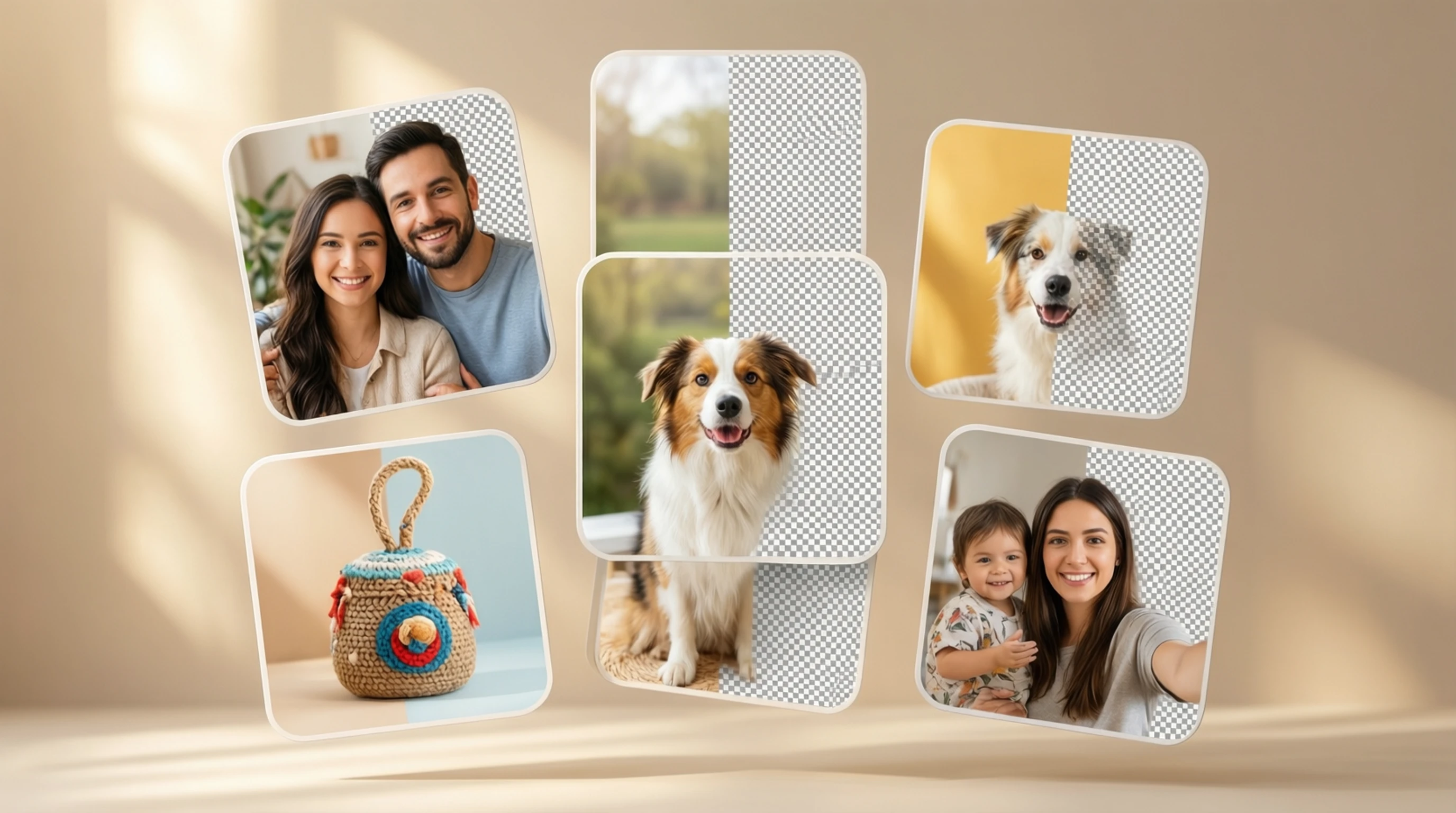
Need to remove picture background from a photo? Whether it is a family picture, a product shot, a pet portrait, or a selfie, removing the background transforms an ordinary picture into a versatile asset you can use anywhere.
This guide walks you through how to remove picture background for free, what types of pictures work best, and creative ways to use your clean cutouts.
Why Remove the Background from a Picture?
Every picture tells a story, but sometimes the background tells the wrong one. A beautiful portrait gets undermined by a cluttered kitchen in the background. A product shot loses its impact when surrounded by a messy desk. A pet photo meant for a custom mug looks odd with a living room carpet behind it.
Removing the background solves all of these problems:
- Focus on the subject: The viewer's eye goes directly to what matters — the person, product, or object in the picture.
- Versatility: A picture with no background can be placed on any color, pattern, or scene. One cutout serves dozens of use cases.
- Professional appearance: Clean backgrounds signal quality. E-commerce stores, social media brands, and professional portfolios all rely on background-free images.
- Creative freedom: Transparent cutouts are the building blocks for collages, composites, stickers, merchandise, and graphic design projects.
How to Remove Picture Background: 4 Simple Steps
Step 1: Open the Free Tool
Go to Remove-Backgrounds.net in any browser. Works on desktop, tablet, and mobile — no app download needed.
Step 2: Upload Your Picture
Click the upload area or drag and drop your picture file. The tool accepts JPG, PNG, and WebP pictures up to 50 MB. Your picture is automatically prepared for AI processing.
Step 3: AI Removes the Background
The AI model scans your picture, identifies the subject, and removes everything else in 2 to 5 seconds. You see a real-time preview of the result.
Step 4: Download Your Picture
Download the clean cutout as a transparent PNG. The subject retains its original quality with precise, natural edges. You can also choose a solid background color if preferred.
What Types of Pictures Work Best?
The AI handles virtually every type of picture, but some subjects produce especially clean results:
| Picture Type | Quality | Notes |
|---|---|---|
| People and portraits | Excellent | Handles hair, clothing edges, and accessories with precision |
| Products on surfaces | Excellent | Ideal for e-commerce listings and catalogs |
| Pets and animals | Very good | Manages fur, whiskers, and tails effectively |
| Logos and graphics | Excellent | Clean edges on text and geometric shapes |
| Vehicles | Very good | Handles reflective surfaces and wheels |
| Food and dishes | Very good | Works well with irregular shapes and garnishes |
| Plants and flowers | Good | Fine leaves and petals are separated accurately |
| Complex scenes | Good | Multiple subjects or overlapping elements may need review |
For the best results, ensure the subject is clearly visible, well-lit, and distinct from the background.
Picture Background Removal vs Image Background Removal
You might notice that people search for "remove picture background," "remove image background," and "remove photo background." All three phrases describe the same operation:
- Picture: A casual, everyday term. Common in everyday conversation and among non-technical users.
- Photo: Implies a photograph taken with a camera. Used interchangeably with "picture" by most people.
- Image: A broader technical term that includes photos, screenshots, illustrations, and graphics.
The AI tool handles all of these equally well. Whether you call it a picture, photo, or image, the process and result are identical. Upload your file, the AI removes the background, and you download a clean cutout.
Creative Ways to Use Background-Free Pictures
Custom Stickers
Turn any picture into a WhatsApp, Telegram, or iMessage sticker. Remove the background, export as PNG, and import into your favorite sticker maker app. Pet photos and face close-ups make the best stickers.
Social Media Posts
Place your subject on bold, branded backgrounds for Instagram, LinkedIn, or Twitter posts. Background-free pictures let you create consistent visual branding without expensive photo shoots.
Product Listings
Every major marketplace expects clean product pictures. Remove the background from your product shots and place them on pure white for Amazon, styled mockups for Shopify, or lifestyle scenes for Etsy.
Presentations
Clean cutouts look far better in slide decks than rectangular photos with distracting backgrounds. Remove the picture background and drop the subject directly onto your slide design.
Greeting Cards and Collages
Create personalized greeting cards, invitations, and photo collages by combining background-free pictures from different sources. Layer family portraits, pet photos, and decorative elements for custom designs.
Print-on-Demand Merchandise
T-shirts, phone cases, mugs, and tote bags all need transparent artwork. Remove the background from any picture to create print-ready designs for platforms like Redbubble, Printful, and Merch by Amazon.
Tips for the Cleanest Picture Background Removal
Use the Best Quality Picture Available
Higher resolution means more pixel data for the AI to analyze. A picture from a modern smartphone camera produces far cleaner edges than a compressed thumbnail downloaded from a website.
Ensure Good Lighting
Even, natural lighting creates clear boundaries between the subject and the background. Avoid harsh shadows that extend into the background or backlighting that silhouettes the subject.
Maximize Contrast Between Subject and Background
The AI separates subjects most accurately when there is a visible color difference between the foreground and background. A dark subject on a light background (or the reverse) gives the cleanest results.
Keep the Full Subject in Frame
Make sure the entire subject is visible within the picture with a small margin around the edges. Subjects that are cropped by the picture border may produce less predictable edge results.
Frequently Asked Questions
Can I remove the background from any picture?
Yes. The AI works on pictures of people, animals, products, vehicles, food, plants, and virtually any identifiable subject. It has been trained on millions of diverse images and handles most subjects accurately.
Is it free to remove picture backgrounds?
Absolutely. Remove-Backgrounds.net provides free background removal with no watermarks and no signup required. Results are suitable for both personal and commercial use.
Does removing the background reduce picture quality?
No. The subject pixels remain completely untouched. Only the background pixels are removed. Your subject retains its original resolution, sharpness, and color accuracy.
What file format should I save my picture in after removal?
Save as PNG to preserve transparency. If you plan to place the cutout on a new background and no longer need transparency, JPG works for the final composite. For web use with smaller files, WebP also supports transparency.
Can I remove backgrounds from pictures on my phone?
Yes. The tool works in any mobile browser — Safari, Chrome, Firefox, or others. Upload directly from your camera roll and download the result. No app installation needed.
Remove Your Picture Background Now
Ready to remove picture background from your photos? Visit Remove-Backgrounds.net and upload your picture. The AI handles the rest in seconds — clean edges, full quality, transparent output.
Remove Picture Background — Free →
No matter what type of picture you are working with, AI-powered background removal gives you a professional cutout in seconds. Try it now and see the difference.