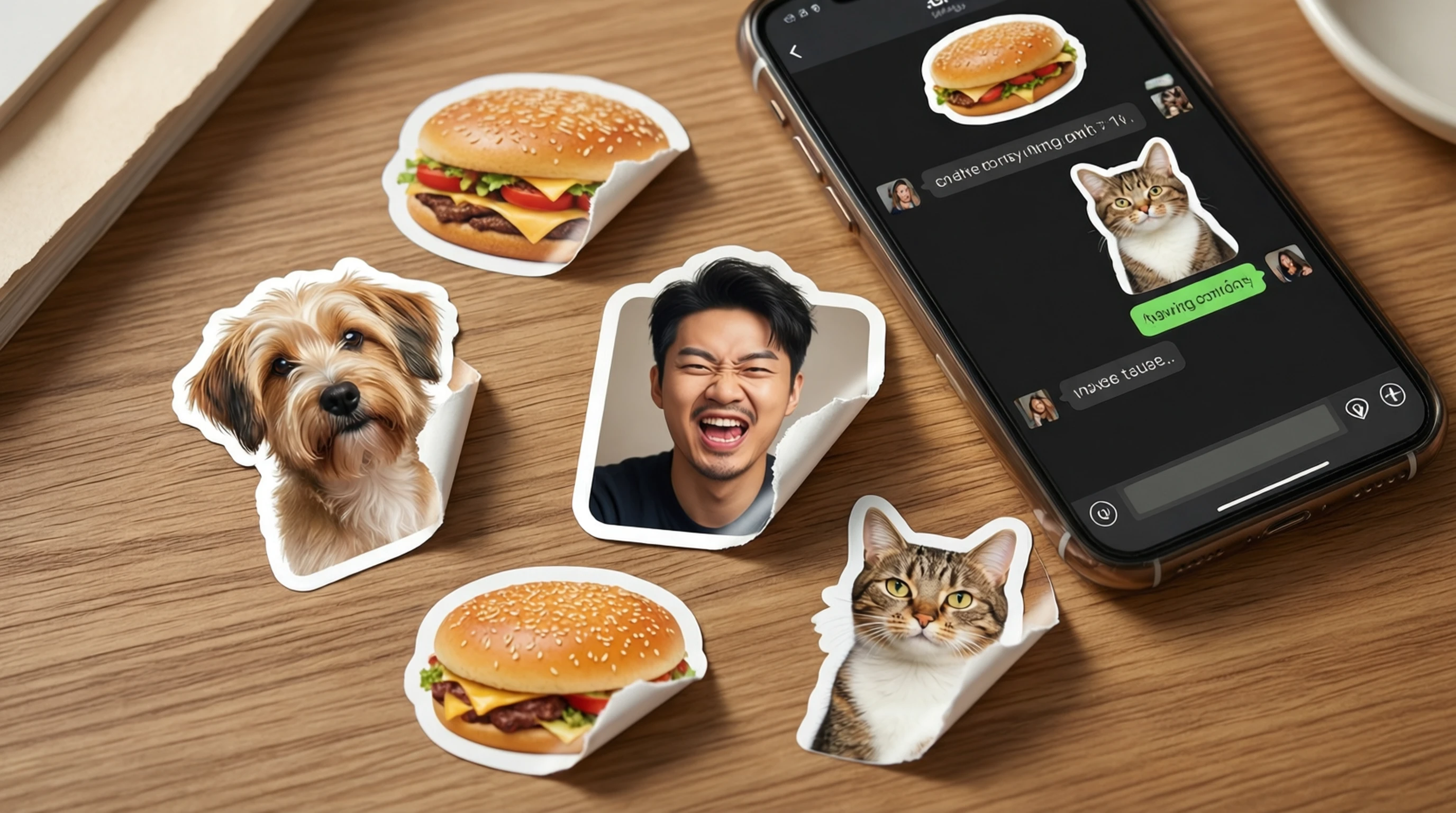
Remove Background for Stickers: Make Custom Stickers from Any Photo
Remove Background for Stickers: Make Custom Stickers from Any Photo
Custom stickers have become one of the most personal and creative ways to express yourself digitally and physically. From WhatsApp conversations to laptop lids, from Telegram group chats to planner decorations, stickers made from your own photos carry a personality that pre-made sticker packs simply cannot match. The foundation of every great custom sticker is the same: a clean subject with the background completely removed.
This guide covers everything you need to know about turning any photo into a sticker -- whether you want to send it in a chat, print it on vinyl, or stick it on your water bottle.
Why Background Removal Is the Key to Great Stickers
A sticker, by definition, is an isolated subject. Think of any sticker you have ever used -- emoji, brand logo, character illustration -- none of them come with a rectangular background attached. The subject is cut out cleanly, often with a thin white or colored border, and stands on its own.
When you create stickers from photos, the background removal step is what transforms a regular photograph into something that looks and feels like a sticker. Without it, you just have a rectangular image. With it, you have a cut-out subject that can be placed on any surface, digital or physical, and look like it belongs there.
The quality of the background removal directly determines the quality of the sticker. Rough edges, leftover background fragments, or missing pieces of the subject make a sticker look amateurish. That is why using an AI-powered tool that handles fine details like hair, fur, and complex edges is essential.
Types of Custom Stickers You Can Make
Digital Chat Stickers
Messaging apps like WhatsApp, Telegram, Signal, and iMessage support custom sticker packs. You can create stickers of:
- Your face with different expressions (surprise, laughter, eye roll, thumbs up)
- Your pet doing funny things
- Inside jokes with friends and family
- Your child's artwork turned into sendable stickers
- Food photos for reacting to dinner plans
Printed Vinyl Stickers
Physical stickers for laptops, water bottles, phone cases, notebooks, and car bumpers. These require:
- High-resolution source images (at least 300 DPI at print size)
- Clean edge removal with no artifacts
- A transparent or white background for the die-cut shape
Planner and Scrapbook Stickers
Smaller decorative stickers printed on sticker paper for journaling, planning, and scrapbooking. These often feature:
- Travel photos turned into mini stickers
- Family photos for memory pages
- Floral and nature cutouts for decorative borders
Brand and Business Stickers
Companies create custom stickers for:
- Packaging inserts (a branded sticker with every order)
- Event giveaways
- Laptop stickers as swag
- Social media story overlays
How to Make Custom Stickers Step by Step
Step 1: Choose Your Photo
Select a photo with a clear, well-defined subject. The best sticker photos have:
- Strong contrast between the subject and background
- Good lighting so details are visible
- Interesting expressions or poses that convey emotion or humor
- Clean composition with the subject fully visible (not cropped off at edges)
For face stickers, choose photos where the expression is exaggerated and easy to read at small sizes. Subtle expressions get lost when a sticker is only 100 pixels tall.
Step 2: Remove the Background
Go to remove-backgrounds.net/upload and upload your photo. The AI will automatically detect the subject and remove the background in seconds. The result is a transparent PNG -- exactly what you need for any sticker format.
Review the edges carefully. For most photos, the AI handles hair, fur, and fine details cleanly. If your subject has areas that blend closely with the background (same color shirt as the wall behind, for example), choose a source photo with better contrast for the best results.
Step 3: Add a Sticker Border (Optional)
Many stickers have a thin white border around the subject that makes them pop against any background. You can add this in any image editor:
- In Canva: Upload your transparent PNG, add a white shadow or outline effect.
- In Photoshop/GIMP: Use Layer Style > Stroke with white color, 5-15 pixels depending on image size.
- In sticker maker apps: Most sticker creation apps (like Sticker Maker for WhatsApp) add the border automatically.
Step 4: Resize for Your Target Platform
Different platforms and use cases have different size requirements. See the platform-specific sections below for exact specifications.
Step 5: Export and Use
- For digital stickers: Export as PNG with transparency
- For printed stickers: Export as PNG at 300 DPI with transparency (the printer handles the die-cut outline)
- For sticker maker apps: Export as PNG and import into the app
Platform-Specific Sticker Requirements
WhatsApp Stickers
WhatsApp has specific technical requirements for custom stickers:
| Requirement | Specification |
|---|---|
| Image size | 512 x 512 pixels exactly |
| File format | WebP (apps convert PNG for you) |
| File size | Under 100 KB per sticker |
| Background | Must be transparent |
| Pack size | Minimum 3, maximum 30 stickers per pack |
How to create: Use the "Sticker Maker" app (available on iOS and Android). Import your background-removed PNG, crop it to frame the subject, and the app handles the WebP conversion and sizing. Create a pack of 3 or more stickers and add it to WhatsApp.
Telegram Stickers
Telegram offers both static and animated sticker support:
| Requirement | Static Stickers | Animated Stickers |
|---|---|---|
| Image size | 512 px on one side | 512 px on one side |
| File format | WebP or PNG | TGS (Lottie) |
| File size | Under 512 KB | Under 64 KB |
| Background | Transparent | Transparent |
How to create: Message @Stickers bot on Telegram, follow the prompts to create a new pack, and send your transparent PNGs. The bot walks you through the entire process.
iMessage Stickers (iOS)
Creating iMessage sticker packs requires Xcode and an Apple Developer account for App Store distribution. However, for personal use:
- Drag transparent PNGs from your Photos app directly into iMessage conversations on macOS
- Use third-party apps like "Sticker Maker Studio" on iOS to create packs without coding
Signal Stickers
Signal uses the signalstickers.org community or the Signal desktop app's built-in sticker creator. Images should be 512 x 512 PNG files with transparent backgrounds.
Making Print-Ready Stickers
Physical stickers require higher quality files than digital ones. Here is what you need:
File Specifications for Print
| Specification | Recommendation |
|---|---|
| Resolution | 300 DPI minimum (600 DPI for small stickers) |
| Color mode | CMYK for professional printing; RGB for home printing |
| File format | PNG with transparency |
| Bleed | Add 1-2mm bleed area if required by printer |
| Minimum size | 1 inch / 2.5 cm at shortest dimension |
Printing Options
- Home printing: Use inkjet sticker paper (glossy or matte) available at any office supply store. Print your stickers and cut them out by hand or with a craft cutter (Cricut, Silhouette).
- Online print services: Upload your transparent PNG to services like StickerMule, StickerGiant, Sticker It, or Redbubble. They handle professional die-cut printing and ship finished stickers to you.
- Local print shops: Many local shops offer small-batch sticker printing on vinyl with lamination for durability.
Tips for Print Stickers
- Start with high-resolution photos. Phone photos are usually 12MP+, which gives you plenty of resolution for stickers up to 4-5 inches.
- Check edges at 100% zoom before sending to print. Any background removal artifacts will be visible on a physical sticker.
- Choose the right material: Matte vinyl for a subtle look, glossy vinyl for vibrant colors, holographic for attention-grabbing shine.
- Add a protective laminate if the stickers will be used outdoors or on water bottles. This prevents fading and water damage.
Creative Sticker Ideas
Running out of ideas for what to turn into stickers? Here are some popular categories:
- Pet portraits: Your dog, cat, or any pet with funny expressions. Pet stickers are consistently the most popular custom stickers people create.
- Baby milestones: Monthly baby photos turned into a sticker timeline.
- Travel memories: Landmark photos, food from trips, or selfies at famous locations.
- Wedding and event favors: Custom stickers of the couple, venue, or event logo for guests.
- Friend group stickers: Inside jokes, group photos, and reaction faces for your group chat.
- Small business branding: Your logo, product photos, or mascot as stickers for packaging and marketing.
- Meme stickers: Reaction photos of yourself or friends that capture specific emotions perfectly.
- Hobby stickers: Your artwork, craft projects, garden harvest, or cooking creations.
Tips for Making Better Stickers
-
Exaggerate expressions: Subtle facial expressions disappear at sticker sizes. Choose photos where the emotion is big and obvious.
-
Think about silhouette: A good sticker has a recognizable shape even in outline. If the silhouette is a boring rectangle or blob, the sticker will not be visually interesting.
-
Keep it simple: Stickers with too many details look cluttered at small sizes. One clear subject per sticker.
-
Test at target size: Display your sticker at its actual use size on screen before finalizing. What looks great at 1000 pixels might be unreadable at 100 pixels.
-
Create sets: Stickers work best in packs. Create a set of 6-12 related stickers (different expressions, poses, or subjects) so you have options for every conversation or surface.
-
Use high contrast: Stickers need to be visible against any background. The white border helps, but also choose subjects and colors that naturally stand out.
Frequently Asked Questions
Do I need any design skills to make custom stickers?
Not at all. The entire process is: take a photo, remove the background with AI at remove-backgrounds.net, and import the transparent PNG into a sticker maker app or send it to a printer. No drawing, no design software expertise, no artistic ability required. If you can take a photo, you can make a sticker.
What is the best photo format for stickers?
PNG with a transparent background is the universal format for stickers. Every digital sticker platform accepts PNG, and every print service works with transparent PNGs. Some platforms (like WhatsApp) require WebP, but sticker maker apps handle that conversion automatically from your PNG source file.
Can I make stickers from screenshots or low-resolution images?
You can, but the quality will be limited. For digital chat stickers displayed at small sizes, screenshots and lower-resolution images often work fine. For printed stickers, you need at least 300 DPI at the print size, which means higher-resolution source images. A 1080 x 1080 screenshot can make a decent printed sticker at about 3.5 inches, but anything smaller will look pixelated.
How do I make stickers waterproof for laptops and water bottles?
If you are ordering from a professional sticker printer (StickerMule, Redbubble, etc.), select vinyl material with a laminate finish -- these are inherently waterproof and UV-resistant. If you are printing at home, use waterproof vinyl sticker paper and apply a clear laminate sheet or spray-on sealant after printing.
Can I sell custom stickers made from my photos?
Yes, as long as you own the rights to the photos and they do not contain copyrighted or trademarked material from others. Many creators sell sticker packs on Etsy, Redbubble, and their own websites. Pet stickers, illustration-style portrait stickers, and niche hobby stickers are particularly popular in online marketplaces.
Start Making Your Custom Stickers
Every great sticker starts with one step: removing the background. Whether you are making stickers for your group chat, decorating your laptop, or launching a sticker business, the process begins with a clean cutout of your subject.
Here is all it takes:
- Choose a photo with a clear, expressive subject
- Upload it at remove-backgrounds.net/upload
- Download the transparent PNG in seconds
- Import into your sticker maker app or send to a printer
No subscriptions. No watermarks. Just your photos turned into stickers that are uniquely yours.