Remove Background for Profile Picture: Professional Photos in Seconds
Remove Background for Profile Picture: Professional Photos in Seconds
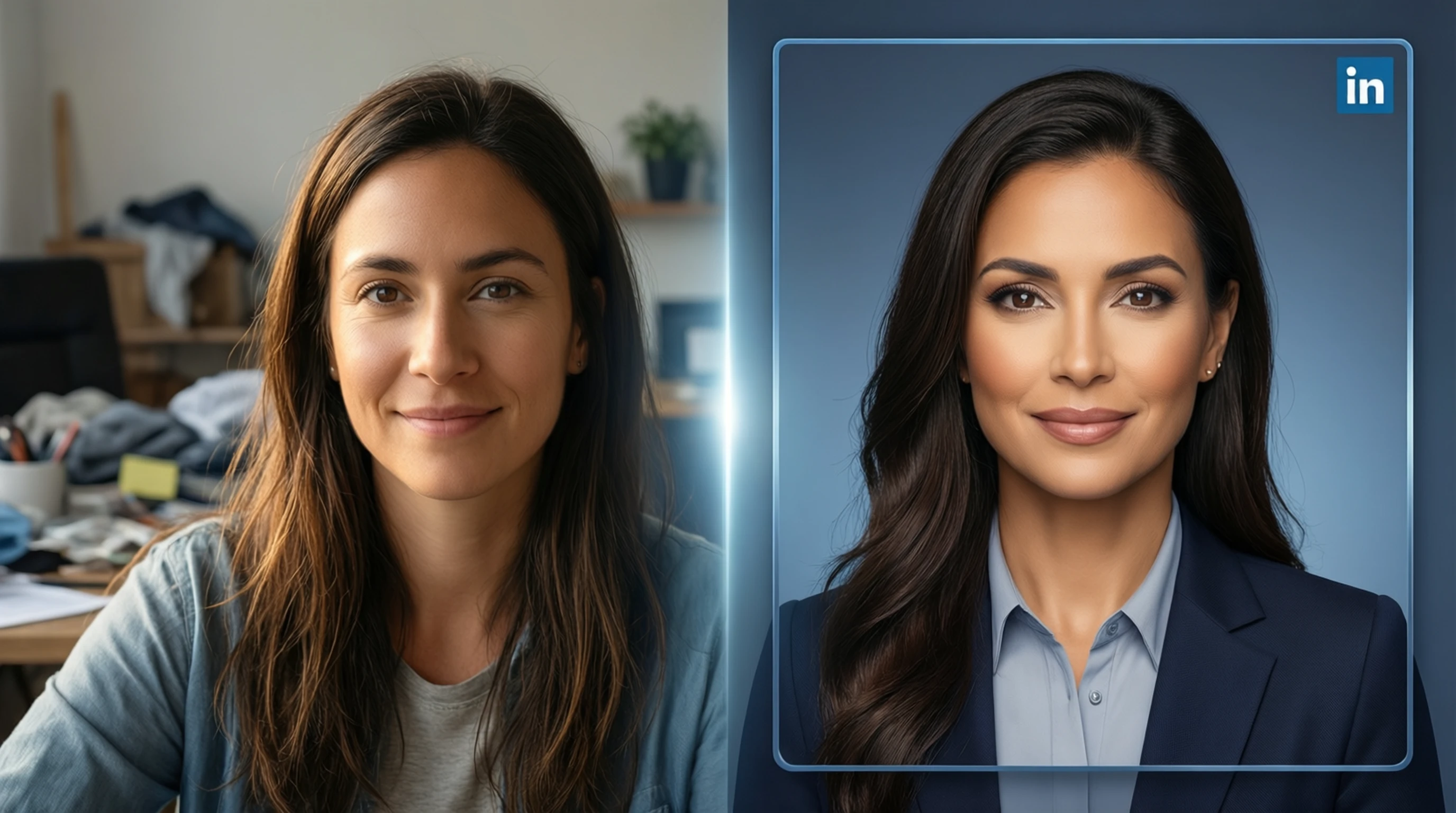
Your profile picture is your digital handshake. Whether someone finds you on LinkedIn, spots your byline in a company newsletter, or receives an email with your signature, that small square image shapes their first impression of you before a single word is read. The problem is that most profile photos are taken in less-than-ideal settings -- busy coffee shops, cluttered home offices, or outdoor locations with distracting elements that pull focus from your face.
The solution is straightforward: remove the background and replace it with something clean and professional. What used to require a studio session or advanced Photoshop skills now takes seconds with AI-powered background removal. This guide walks you through the entire process, from choosing the right source photo to optimizing your headshot for every major platform.
Why Your Profile Picture Background Matters
Hiring managers, potential clients, and professional contacts form judgments about you within milliseconds of seeing your profile photo. Research on first impressions consistently shows that clean, well-lit headshots with neutral backgrounds are perceived as more competent, trustworthy, and approachable compared to casual photos with busy surroundings.
Here is what a cluttered background communicates -- even subconsciously:
- Lack of attention to detail: If you did not take the time to get a clean photo, will you pay attention to details in your work?
- Unprofessional context: A selfie at a bar or a photo cropped from a group shot signals that professional presentation is not a priority.
- Visual noise: Viewers' eyes are drawn to high-contrast areas and movement in the background instead of focusing on your face.
A clean background eliminates all of these signals and lets your face do the talking. It says: I take my professional presence seriously.
Studio Headshot vs. AI-Cleaned Selfie: How They Compare
Traditional studio headshots cost anywhere from $150 to $500 or more. You book a session, travel to the studio, sit through multiple poses, and wait for edited files. The results are excellent, but the process is expensive and time-consuming.
An AI-cleaned selfie taken with a modern smartphone can achieve remarkably similar results at zero cost. Here is how they compare:
| Factor | Studio Headshot | AI-Cleaned Selfie |
|---|---|---|
| Cost | $150 - $500+ | Free |
| Time | 1-3 hours (travel + session + editing) | Under 2 minutes |
| Lighting quality | Professional studio lighting | Natural light (window or outdoor) |
| Background | Controlled studio backdrop | Removed and replaced by AI |
| Resolution | Very high (DSLR) | High (modern smartphones shoot 12MP+) |
| Overall quality | Excellent | Very good to excellent |
The takeaway is not that studio photos are unnecessary. For C-suite executives, public speakers, or anyone whose headshot appears on billboards and magazine covers, a professional session is worth it. But for the vast majority of professionals, a well-lit selfie with the background removed by AI produces a headshot that is more than sufficient for LinkedIn, company websites, and email signatures.
How to Remove Your Profile Picture Background Step by Step
Step 1: Choose or Take the Right Source Photo
The quality of your final headshot depends heavily on the source image. Follow these guidelines:
- Framing: Head and shoulders only, centered in the frame. Leave some space above your head.
- Lighting: Face a window or stand in open shade outdoors. Avoid overhead fluorescent lights and direct harsh sunlight that creates deep shadows.
- Expression: A natural, relaxed smile or a calm, confident expression. Avoid forced poses.
- Clothing: Wear what you would wear to a professional meeting. Solid colors photograph better than busy patterns.
- Camera: Your smartphone front camera is fine. Hold it at eye level or slightly above, at arm's length or propped on a surface.
Step 2: Upload to Remove-Backgrounds.net
Go to remove-backgrounds.net/upload and upload your photo. The AI processes your image in seconds, generating a precise mask that separates you from the background. Hair edges, glasses, and even earrings are handled cleanly by the BiRefNet model.
Step 3: Download Your Transparent PNG
Once the background is removed, download the result as a PNG with a transparent background. This gives you maximum flexibility -- you can place yourself on any background color you choose.
Step 4: Add a Professional Background
Open the transparent PNG in any image editor (even free tools like Canva or your phone's built-in editor) and place it on a background that suits your professional context:
- Solid white or light gray: The safest, most universally professional choice.
- Soft blue or teal: Conveys trust and calm. Popular in tech and finance.
- Brand colors: If your company has a specific palette, matching your headshot background to it shows brand alignment.
- Subtle gradient: A two-tone gradient from your brand color to white adds visual interest while remaining professional.
Step 5: Resize and Export for Your Target Platform
Crop and resize your image to match the platform requirements listed in the next section. Export as a high-quality JPEG or PNG.
Platform-Specific Size Requirements
Every platform displays profile pictures differently. Using the wrong dimensions results in awkward cropping or blurry compression. Here are the recommended sizes:
| Platform | Recommended Size | Display Shape | Notes |
|---|---|---|---|
| 400 x 400 px (min) | Circle | Uploads up to 8 MB; displayed at ~100px on feed | |
| Twitter/X | 400 x 400 px | Circle | Displayed at 48px in tweets; upload high-res for zoom |
| 170 x 170 px (desktop) | Circle | Upload at 512 x 512 or higher for clarity | |
| 320 x 320 px (min) | Circle | Displayed small; upload at 512+ for sharpness | |
| Google Workspace | 250 x 250 px (min) | Circle | Appears in Gmail, Calendar, Docs, Meet |
| Slack | 512 x 512 px | Rounded square | Higher res recommended for retina displays |
| GitHub | 460 x 460 px | Circle | Also used for commits, PRs, and comments |
| Email signature | 100-200 px wide | Varies | Keep file size under 50 KB for email compatibility |
| Company website | 300 x 300 px+ | Varies | Match your site's design specifications |
Important: All of these platforms crop to a circle or rounded shape. Position your face in the center of the image and leave padding around your head so nothing important gets cropped off at the edges.
Tips for the Best Profile Picture Results
-
Avoid selfie distortion: If your phone is too close, wide-angle lens distortion can enlarge your nose and shrink your ears. Hold the camera at least 2 feet away or use the rear camera with a timer.
-
Match the context: A LinkedIn headshot should be more formal than a Twitter/X avatar. Adjust your expression, clothing, and background color accordingly.
-
Update regularly: If your appearance has changed significantly (new hairstyle, glasses, weight change), update your photo. People should be able to recognize you from your picture.
-
Keep it consistent across platforms: Use the same headshot (or variations with different background colors) across all professional platforms. This builds recognition and trust.
-
Test at small sizes: Profile pictures are often displayed at 48-100 pixels. After editing, shrink your image to thumbnail size and check that your face is still clearly visible and recognizable.
-
Skip the filters: Instagram-style filters, heavy retouching, or artistic effects undermine professionalism. A clean background with natural colors is always the right choice.
-
Consider accessibility: Ensure sufficient contrast between your face/clothing and the background color. A person wearing a white shirt on a white background will appear to have a floating head.
Frequently Asked Questions
Can I use a selfie for a professional LinkedIn profile picture?
Absolutely. Modern smartphones produce images with more than enough resolution for LinkedIn. The key factors are lighting, framing, and background -- not the camera that took the photo. Remove the background with AI, add a clean solid color, and your selfie will look indistinguishable from a studio headshot at LinkedIn's display sizes.
What background color is best for a professional headshot?
White, light gray, and soft blue are the three most universally safe choices. White is clean and works everywhere. Light gray adds subtle depth without distraction. Blue conveys trust and is the most popular background color for corporate headshots. If your company has brand colors, using them creates visual consistency with your organization's identity.
Will removing the background make my hair look unnatural?
Modern AI background removal tools handle hair edges with high precision, including fine flyaway hairs and curly textures. The BiRefNet model used at remove-backgrounds.net is specifically trained to preserve natural hair boundaries. For best results, ensure your source photo has good contrast between your hair and the original background.
How often should I update my profile picture?
Update your headshot whenever your appearance changes noticeably -- roughly every 1-2 years for most people. If you have the same photo from five years ago, it is time for a refresh. Outdated photos create awkward moments when people meet you in person and do not recognize you.
Can I use the same background-removed photo for both personal and professional profiles?
Yes, and this is actually a smart strategy. Start with one high-quality background-removed photo and create multiple versions: a neutral gray background for LinkedIn, your brand color for your company website, and a more casual or colorful background for personal social media. One photo session, multiple outputs.
Create Your Professional Profile Picture Now
Your profile picture is working for you 24 hours a day across every platform where you have a presence. A professional, clean headshot communicates competence and attention to detail without you saying a word.
The process takes less than two minutes:
- Take or choose a well-lit photo of yourself
- Upload it at remove-backgrounds.net/upload
- Download the transparent PNG
- Place on your chosen professional background
- Resize and upload to every platform
No studio appointment. No expensive photographer. No Photoshop expertise. Just a clean, professional headshot that makes the right first impression every time.