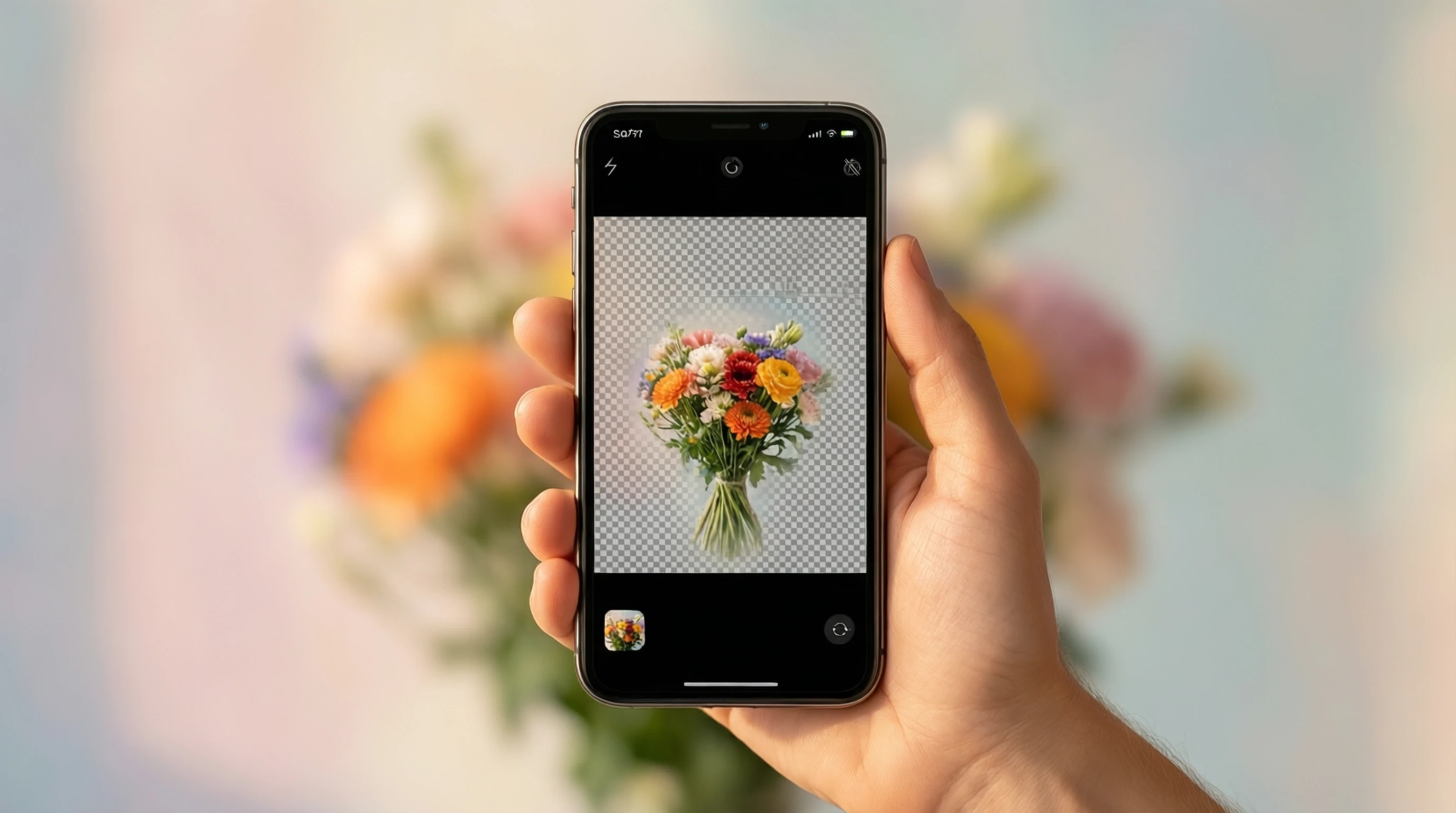
How to Remove Background on iPhone: Free Browser Method
How to Remove Background on iPhone: Free Browser Method
You took a great photo on your iPhone, but the background is cluttered, distracting, or just wrong for what you need. You want to remove it, but you do not want to download another app that takes up storage, requires a subscription, or plasters watermarks on your images.
Good news: you can remove backgrounds from photos on your iPhone entirely in Safari, using a free browser-based AI tool. No app, no signup, no payment. This guide covers the exact steps, compares this approach to the built-in iOS subject lifting feature, and shares tips for getting the cleanest results from your iPhone photos.
Two Ways to Remove Backgrounds on iPhone
iPhones actually offer two distinct approaches to background removal. Understanding the difference helps you choose the right one for each situation.
Option 1: iOS Built-In Subject Lifting (iOS 16+)
Starting with iOS 16, Apple added a feature called Visual Look Up that lets you lift a subject from a photo by long-pressing on it. The subject separates from the background and you can copy, share, or save it as a sticker.
How it works:
- Open a photo in the Photos app.
- Long-press on the subject until it "lifts" with a glowing outline.
- Tap Copy, Share, or drag the subject into another app like Messages or Notes.
Strengths:
- Built into iOS with no additional tools needed.
- Works offline since processing happens on-device.
- Fast for casual use like creating stickers for iMessage.
Limitations:
- Limited edge precision, especially on hair, fur, and fine details.
- Does not produce a downloadable PNG file directly. You get a copied image in memory.
- No control over output resolution or quality.
- Works best on clear, high-contrast photos with obvious subjects. Struggles with complex scenes.
- Only available on iPhone XS and later models with iOS 16+.
- Cannot process images from other sources (screenshots, downloaded images) as reliably.
Option 2: Browser-Based AI Background Removal
Opening a dedicated AI tool in Safari gives you professional-grade background removal with full control over the output.
How it works:
- Open Safari and visit an AI background removal tool.
- Upload a photo from your Camera Roll.
- The AI processes the image on a remote server using a trained deep learning model.
- Download the result as a high-quality PNG with transparent background.
Strengths:
- Significantly more accurate on complex edges like hair, jewelry, and translucent materials.
- Produces a proper PNG file with full transparency that you can save, share, or use in any design tool.
- Maintains original image resolution and quality.
- Works on any iPhone model with Safari, regardless of iOS version.
- Handles all image types consistently, including screenshots, downloaded images, and photos from any camera.
Limitations:
- Requires an internet connection.
- Processing happens on a remote server rather than on-device.
For casual sticker creation in Messages, the built-in iOS feature is convenient. For anything where quality, precision, and a proper transparent PNG matter, the browser-based approach is the better choice.
How to Remove Background on iPhone Using Safari: Step by Step
Step 1: Open Safari and Visit the Tool
Open Safari on your iPhone and go to remove-backgrounds.net. The website is fully responsive and optimized for mobile Safari. It loads quickly and the interface adapts to your iPhone screen size automatically.
Step 2: Tap Upload and Select Your Photo
Tap the upload area on the page. iOS will present options to choose a photo. Select Photo Library to pick an existing image from your Camera Roll, or choose Take Photo to capture a new one directly. You can also select images from the Files app if your photo is stored there.
Step 3: Wait for AI Processing
Once you select a photo, it uploads to the server and the AI begins processing. This typically takes 3 to 5 seconds on a standard mobile connection. You will see a progress indicator while the model analyzes your image. On Wi-Fi, processing is usually even faster.
Step 4: Preview the Result
The processed image appears on screen with the background removed. Pinch to zoom in on edges and fine details to verify the quality. The AI handles complex elements like individual hair strands, earrings, glasses frames, and clothing wrinkles with high accuracy.
Step 5: Download and Save to Camera Roll
Tap the download button to save the result. Safari will download a PNG file with a transparent background. You can find it in your Downloads (accessible through the Files app) or tap the download icon in Safari's toolbar to open it directly.
To save the PNG to your Camera Roll: open the downloaded file, tap the share icon, and select Save Image. The transparent PNG is now in your Photos library, ready to use in any app.
Best Practices for iPhone Photos Before Background Removal
The quality of your result depends heavily on the quality of your source photo. These tips help you capture iPhone photos that produce the cleanest background removal.
Use the main camera, not the selfie camera. The rear-facing camera on every iPhone has a significantly better sensor, sharper lens, and higher resolution than the front-facing camera. When possible, use it for photos you plan to process.
Tap to focus on your subject. Before shooting, tap on your subject on the iPhone screen. This ensures the camera focuses and exposes for the subject rather than the background.
Shoot in good lighting. Natural daylight produces the best results. Stand near a window or go outside on an overcast day. Avoid harsh direct sunlight which creates strong shadows, and avoid dimly lit rooms which introduce grain and noise.
Keep the subject distinct from the background. A person wearing a white shirt against a white wall is harder for any tool to process than the same person against a contrasting background. When you have control over the setting, choose a background that contrasts with your subject.
Hold steady or use a surface. Camera shake causes motion blur that degrades edge detection. Hold your iPhone with both hands, brace your elbows against your body, or prop your phone against a stable surface.
Use Portrait mode for people shots. While not required, Portrait mode on iPhones with dual cameras captures additional depth information. The resulting photo often has better subject-background separation, which gives the AI more data to work with.
Common Use Cases for iPhone Background Removal
Selling on Marketplace Apps
Listing items on Facebook Marketplace, Poshmark, Mercari, or Depop? A clean background makes your listing stand out in the feed. Photograph your item on any surface, remove the background on your iPhone, and upload a professional-looking product image in minutes.
Social Media Content Creation
Creating Instagram stories, Reels, or TikTok content often involves layering images. Remove the background from a photo of yourself, a product, or an object and place it over a branded background or into a design template using apps like Canva or Instagram's built-in editor.
Quick Professional Headshots
Need a clean headshot for a profile, ID badge, or application? Take a photo against any wall, remove the background on your iPhone, and add a solid color or professional-looking backdrop. The result is more polished than most selfies and costs nothing.
School and Work Projects
Presentations, reports, and group projects benefit from clean images. Remove the background from product shots, team photos, or reference images directly on your iPhone and insert them into Google Slides, Keynote, or any document.
Tips for the Best Results on iPhone
Process one subject at a time. AI background removal works best when there is a single clear subject. Group photos or scenes with multiple separate objects may produce inconsistent results.
Check results at full zoom. After processing, pinch to zoom on the edges of your subject. This reveals any areas where the AI may have left background fragments or cut into the subject. Most images process perfectly, but a quick zoom check catches the rare imperfection.
Save as PNG, not screenshot. Do not screenshot the result. Screenshots save as JPEG, which destroys transparency. Always use the download button to get the proper PNG file with the transparent background preserved.
Clear Safari downloads periodically. Processed images accumulate in your Safari downloads. Periodically clear them through the Files app to free up storage.
Use Wi-Fi for faster processing. While cellular connections work fine, Wi-Fi provides faster upload and download speeds, especially for high-resolution images from newer iPhone models that capture 12MP to 48MP photos.
Frequently Asked Questions
Do I need to install an app to remove backgrounds on iPhone?
No. You can remove backgrounds entirely through Safari without installing anything. Visit Remove-Backgrounds.net in your browser, upload a photo, and download the result. This works on every iPhone model and does not require any storage space for app installation.
Which iPhones support the built-in subject lifting feature?
Apple's Visual Look Up subject lifting requires iOS 16 or later and is available on iPhone XS and newer models. This includes iPhone XS, XR, 11, 12, 13, 14, 15, and 16 series. Older models like iPhone X, 8, 7, and SE (1st generation) do not support this feature. The browser-based method works on all iPhones regardless of model or iOS version.
Will the processed image lose quality?
No. When you use a browser-based AI tool, the output maintains the same resolution and detail as your original photo. The AI removes only the background pixels while preserving every detail of your subject. The PNG download is high quality with no compression artifacts or resolution loss.
Can I remove backgrounds from screenshots or downloaded images?
Yes. Unlike the built-in iOS feature which works best on photos taken with the camera, browser-based AI tools process any image regardless of its source. Screenshots, images saved from websites, photos received in messages, and files from any app all work. Upload any image file and the AI treats it the same way.
How does this compare to paid apps like TouchRetouch or PhotoRoom?
Paid apps often offer additional features like batch processing, built-in templates, and advanced editing tools. However, for straightforward background removal, the free browser-based approach produces comparable or identical quality. The key advantage is that you pay nothing, install nothing, and create no accounts. If all you need is a clean background removal, the browser method delivers professional results without any cost.
Remove Backgrounds on Your iPhone Right Now
You do not need an app, a subscription, or a newer iPhone model to get professional background removal. Safari and a free AI tool handle the job in seconds.
Remove Background from Your iPhone Photo →
Open Remove-Backgrounds.net in Safari, upload a photo from your Camera Roll, and download a clean PNG with the background removed. No signup, no watermarks, no app required. Works on every iPhone, every iOS version, right now.