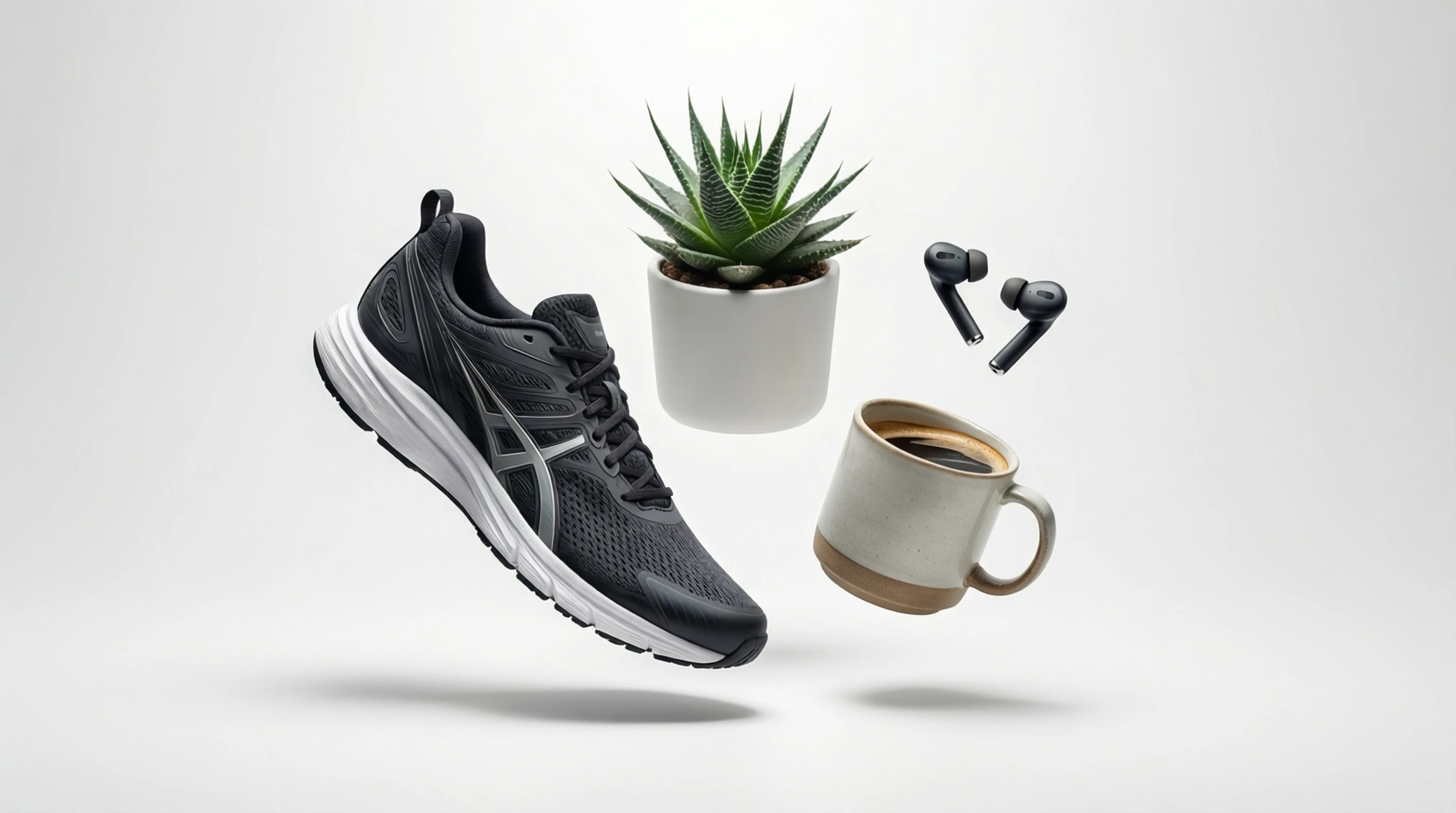
No Background Image: Create Clean Cutouts with No Background
No Background Image: Create Clean Cutouts with No Background
Need a no background image? Whether you are designing a logo, preparing product photos for an online store, or building a presentation, images with no background give you total creative freedom. They sit cleanly on any surface, blend seamlessly into any layout, and look professional everywhere they appear.
This guide explains exactly what a no background image is, how to create one in seconds, and where these transparent cutouts deliver the most value.
What Is a No Background Image?
A no background image is a picture where the area behind the subject has been removed entirely. Instead of a white wall, a busy street, or a living room, there is nothing — just the subject floating on a transparent canvas.
Technically, this transparency is stored as an alpha channel in the image file. When you open a no background image in a design tool or place it on a web page, the transparent area lets whatever is behind it show through. The gray-and-white checkerboard pattern you see in editors like Photoshop or Figma is simply the visual indicator for "nothing here."
The most common file format for a no background image is PNG. Unlike JPG, which does not support transparency, PNG preserves the alpha channel so your cutout remains fully transparent when saved and reopened.
How to Create a No Background Image in 3 Steps
Step 1: Upload Your Photo
Visit Remove-Backgrounds.net and upload your image. Drag and drop or click to browse from your device. The tool accepts JPG, PNG, and WebP files.
Step 2: AI Removes the Background Automatically
The AI model scans your image, identifies the subject, and strips away everything else in 2 to 5 seconds. You will see a real-time preview showing the subject on a transparent background.
Step 3: Download Your No Background Image
Download the result as a transparent PNG. The background is completely gone, and your subject is preserved with clean, natural edges. The file is ready to use in any design tool, website, or document.
Where to Use No Background Images
Logos and Branding
A logo should work on any background — your website header, a business card, a social media profile, or a banner at a trade show. If your logo has a white rectangle around it, it looks amateurish on colored surfaces. A no bg version of your logo is a branding essential.
E-commerce Product Photos
Every major marketplace has specific image requirements, and nearly all of them expect clean, distraction-free product shots. Starting with a no background product image lets you place items on pure white for Amazon, lifestyle mockups for Shopify, or branded backgrounds for your own store — all from a single cutout.
Presentations and Slide Decks
Rectangular photos with mismatched backgrounds break the visual flow of a presentation. Drop in an image no background version of your subject instead, and it integrates naturally with your slide design, color scheme, and layout.
Social Media Graphics
Content creators and marketers layer no background images onto bold colors, gradients, and patterns to create scroll-stopping posts. This technique works across Instagram, LinkedIn, YouTube thumbnails, and TikTok covers.
Stickers, Merch, and Print-on-Demand
Custom stickers, t-shirt designs, phone cases, and mugs all require transparent artwork. A no background photo of a pet, a face, or an illustration is the starting point for any print-on-demand product.
Web Design
Developers and designers use transparent images constantly — hero sections, feature callouts, overlapping elements, and interactive layouts all rely on images with no background to create polished, layered designs.
How to Verify an Image Has No Background
Not sure if your image is truly transparent? Here are reliable ways to check:
| Method | What to Look For |
|---|---|
| Open in an image editor (Photoshop, Figma, GIMP) | Gray-and-white checkerboard behind the subject |
| Check the file format | Must be PNG or WebP — JPG never has transparency |
| Drop it onto a colored page | If white or colored areas appear behind the subject, it is not transparent |
| Inspect file properties | Look for "alpha channel" or "32-bit" color depth |
| Place it in a presentation | A truly transparent image blends with the slide background |
A common mistake is saving a no background image as JPG. The moment you do that, the transparent areas turn white (or black, depending on the software) because JPG does not support alpha channels. Always save as PNG to keep your image truly background-free.
No Background Image Formats Compared
| Format | Supports Transparency | File Size | Best For |
|---|---|---|---|
| PNG | Yes | Medium-large | Design work, e-commerce, print |
| WebP | Yes | Small | Web use, faster page loads |
| SVG | Yes (vector) | Very small | Logos, icons, illustrations |
| JPG | No | Small | Final images with solid backgrounds only |
| GIF | Partial (1-bit) | Small | Simple graphics with hard edges |
PNG is the standard for no background images. It offers lossless compression, full alpha transparency, and universal compatibility across every design tool, browser, and operating system.
Tips for the Cleanest No Background Results
Start with a High-Quality Source
The AI produces sharper cutouts when it has more pixel data to analyze. A photo from a modern smartphone (3000x4000 pixels or higher) will yield far better edges than a 500-pixel thumbnail pulled from a website.
Maximize Subject-Background Contrast
A dark subject on a dark background forces the AI to guess where the edges are. For the cleanest results, photograph your subject against a contrasting backdrop — light subject on dark, or dark subject on light.
Keep the Subject in Focus
Blurry edges make it harder for the AI to determine where the subject ends and the background begins. Ensure your camera focuses on the subject, and avoid motion blur.
Avoid Heavy Compression
If your source image has visible JPG compression artifacts (blocky patches, color banding), these can confuse the AI at fine edges. Use the highest quality version of the image available.
Frequently Asked Questions
What exactly is a no background image?
A no background image is a picture where the area behind the subject is fully transparent rather than filled with a color or scene. The transparency is stored in the file's alpha channel. When placed on a web page, slide, or design canvas, the transparent area lets the underlying content show through.
What file format should I use for no background images?
PNG is the best format for no background images. It supports full alpha transparency, uses lossless compression, and works in every browser, editor, and operating system. WebP is a good alternative for web use when smaller file sizes matter.
Can I create a no background image from a JPG?
Yes. Upload your JPG to Remove-Backgrounds.net, and the AI will remove the background and give you a transparent PNG. The original JPG does not need to have transparency — the tool creates it for you.
Why does my no background image show a white background when I open it?
This usually means the file was saved as JPG instead of PNG. JPG does not support transparency, so any transparent areas get filled with white. Re-download the image as PNG, or check that your software is not auto-converting the format on save.
Are no background images free to create?
Yes. Remove-Backgrounds.net lets you create no background images without signing up or paying. There are no watermarks on the output, and the results are ready for both personal and commercial use.
Create Your No Background Image Now
Ready to make a no background image? Head to Remove-Backgrounds.net and upload your photo. The AI removes the background in seconds, and you download a clean, transparent PNG — no signup, no watermark, no software to install.
Whether you need a no bg logo, a transparent product shot, or a clean cutout for your next design project, getting an image no background has never been faster.