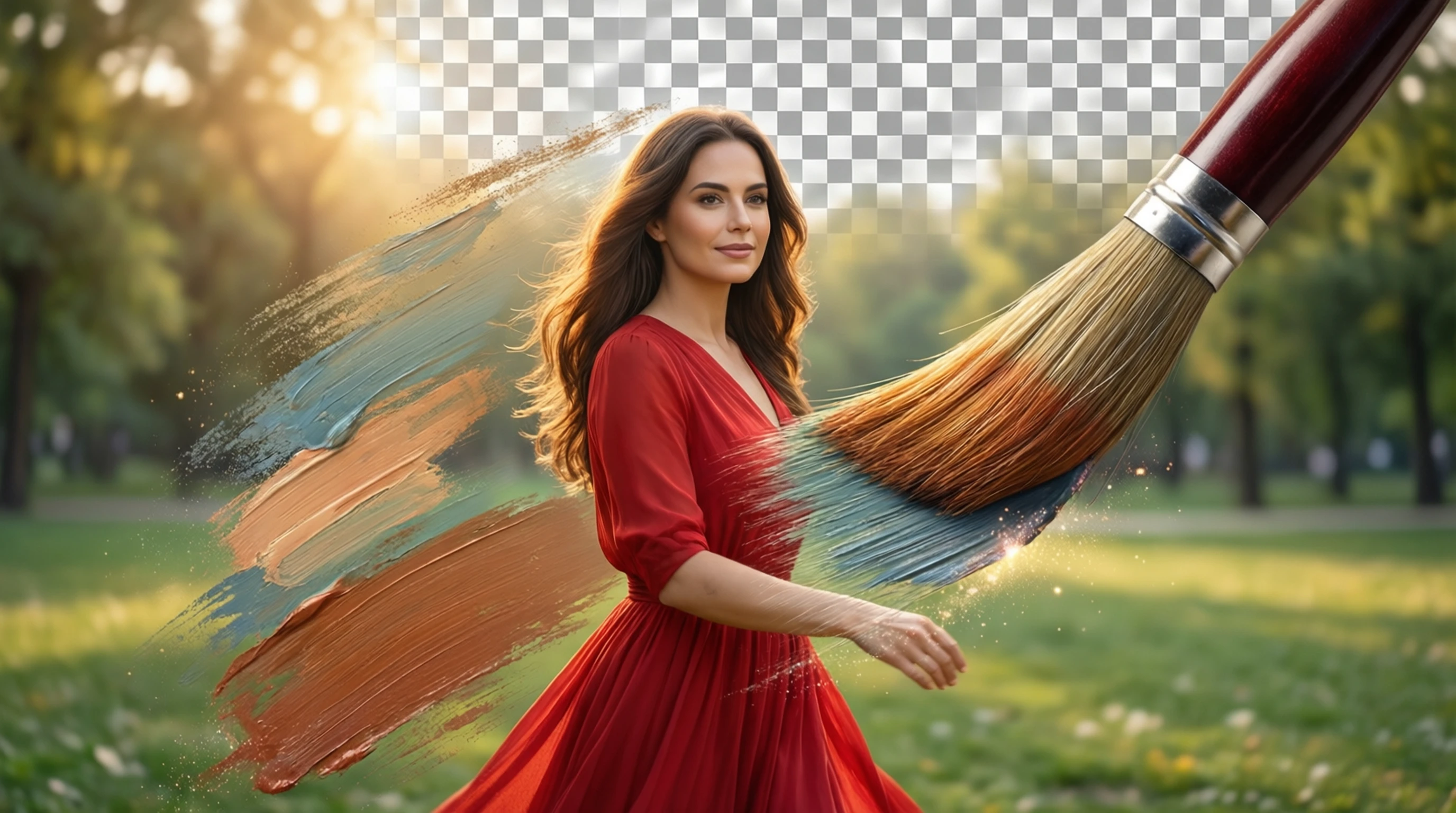
Edit Out Background: AI Background Editing Tool
Edit Out Background: AI Background Editing Tool
Want to edit out background from a photo without spending 20 minutes tracing edges in Photoshop? AI has made this a 5-second task. Upload any photo, and the background disappears automatically — no manual selection, no eraser tools, no learning curve.
This guide covers how to edit out background from any image for free, why AI background editing produces cleaner results than manual methods, and practical tips for getting the best output.
What Does "Edit Out Background" Mean?
When people search for how to edit out background, they are describing the process of removing everything behind the main subject in a photo. The result is either a transparent background (for layering onto other images) or a solid color replacement.
Traditionally, editing out a background required tedious manual work: selecting the subject pixel by pixel with lasso tools, magic wands, or pen paths in software like Photoshop or GIMP. One photo could take 10 to 30 minutes depending on complexity.
AI background editing replaces all of that manual work. A trained neural network analyzes the image, identifies the subject, and generates a precise separation mask in seconds. The output quality matches or exceeds what most people can achieve manually — especially for challenging elements like hair, fur, and semi-transparent materials.
How to Edit Out Background in 4 Steps
Step 1: Open the AI Background Editor
Navigate to Remove-Backgrounds.net in any web browser. No software installation, no account creation, and no payment required.
Step 2: Upload Your Photo
Go to the upload page and drag your image into the drop zone, or click to select a file. The tool accepts JPG, PNG, and WebP formats up to 50 MB. Photos from any source work: phone cameras, DSLRs, screenshots, and web downloads.
Step 3: AI Edits Out the Background
The AI model processes your photo in 2 to 5 seconds. It uses deep learning to understand the scene semantically — identifying people, products, animals, and objects — then generates a pixel-precise mask that separates the subject from everything behind it. Complex edges like hair strands, intricate patterns, and semi-transparent fabrics are preserved automatically.
Step 4: Download the Result
Download your edited image as a full-resolution transparent PNG. No watermarks, no quality reduction, and no signup required. The file is ready to use in any project immediately.
AI vs Manual Background Editing
If you have ever tried to manually erase background in photo editors, you know the frustration. Here is how AI compares to traditional manual methods:
| Aspect | AI Background Editing | Manual Editing (Photoshop/GIMP) |
|---|---|---|
| Time per image | 2-5 seconds | 10-30 minutes |
| Skill required | None | Intermediate to advanced |
| Hair and fur handling | Automatic, pixel-level | Extremely difficult manually |
| Consistency | Same quality every time | Varies with fatigue and skill |
| Cost | Free | Software subscription ($20+/month) |
| Batch capability | Yes, one at a time quickly | Yes, but time-consuming |
| Edge quality | Clean, natural transitions | Depends on technique |
Where AI Excels
AI is dramatically better at handling fine details that humans struggle with manually. Hair strands, animal fur, tree branches against sky, lace and mesh fabrics, and feathered edges are all detected at the pixel level. These are the exact areas where manual selection tools produce the worst results.
AI is also perfectly consistent. The hundredth image gets the same attention as the first. Manual editing quality degrades as you fatigue over a long editing session.
Where Manual Editing Still Has a Place
For highly creative compositing where you want to keep specific background elements or create artistic masks with custom shapes, manual tools still offer more control. But for straightforward background removal — which is what most people need — AI is faster and produces better results.
Best Use Cases for Editing Out Backgrounds
Product Photography
The most common use case. Photograph products anywhere — on a desk, floor, or in natural settings — and edit out the background to create clean images for e-commerce listings. Marketplace platforms like Amazon, eBay, and Shopify benefit from distraction-free product photos.
Professional Headshots
Turn any portrait into a professional headshot by editing out a cluttered or unappealing background. Replace it with a solid color, gradient, or office environment for LinkedIn profiles, company websites, and business cards.
Social Media Content
Create scroll-stopping social media posts by isolating subjects from their backgrounds. Place them on branded backgrounds, add text overlays, or composite multiple subjects into a single creative image.
Presentations and Marketing
Clean subject cutouts integrate seamlessly into slide decks, brochures, flyers, and digital advertisements. No more rectangular photo borders disrupting your layout.
Creative Projects
Collages, photo manipulations, memes, stickers, greeting cards, and art projects all start with a clean cutout. Editing out the background is the first step in any compositing workflow.
Tips for Clean Background Edits
Shoot Against Contrasting Backgrounds
While AI can handle any background, shooting against a color that contrasts with your subject makes edge detection even more precise. A person wearing dark clothing photographs best against a light background, and vice versa.
Ensure Full Subject Visibility
Keep the entire subject within the frame with a small margin on all sides. Elements that extend beyond the image boundary cannot be reconstructed by the AI.
Prioritize Sharp Focus
A sharply focused subject has well-defined edges that the AI can detect with maximum precision. Background blur (bokeh) is actually helpful — it increases the contrast between subject and background.
Upload High Resolution
More pixels mean more data for the AI to work with. Upload original files from your camera or phone rather than compressed versions from messaging apps or social media.
Review Before Downloading
Zoom into the preview to check fine details like hair edges, jewelry, transparent materials, and thin structures. The preview shows exactly what your downloaded file will contain.
Common Questions About Editing Out Backgrounds
What formats can I upload to edit out background?
The tool at Remove-Backgrounds.net accepts JPG, PNG, and WebP images up to 50 MB. These formats cover virtually all photos from phones, cameras, and the web.
Is the background editing tool free?
Yes. Remove-Backgrounds.net provides free background editing with no watermarks, no signup requirement, and no hidden fees. You upload photos and download full-resolution results without any payment.
Can I edit out background on my phone?
Yes. Open Remove-Backgrounds.net in your phone's web browser, upload from your camera roll, and download the result. No app installation needed — the tool works entirely in the browser.
How does AI handle hair and fine details?
The AI model uses semantic segmentation trained on millions of images. It understands the visual structure of hair, fur, feathers, and fine textures at the pixel level. Instead of cutting along a hard edge, it preserves the natural transparency and softness of these elements, producing cutouts that look natural when placed on new backgrounds.
What if I want to replace the background instead of making it transparent?
After downloading the transparent PNG cutout, you can place it on any background using any image editor or design tool. Tools like Canva, Figma, PowerPoint, and Google Slides all support dropping transparent PNGs onto colored or image backgrounds. The first step is always editing out the original background.
Edit Out Your Background Now
Stop spending time on manual selection tools. The AI at Remove-Backgrounds.net can edit out background from any photo in seconds — with cleaner results than most people achieve in 30 minutes of manual work.
No signup, no watermarks, no software to install. Upload your photo, let the AI process it, and download a full-resolution transparent PNG ready for any project.