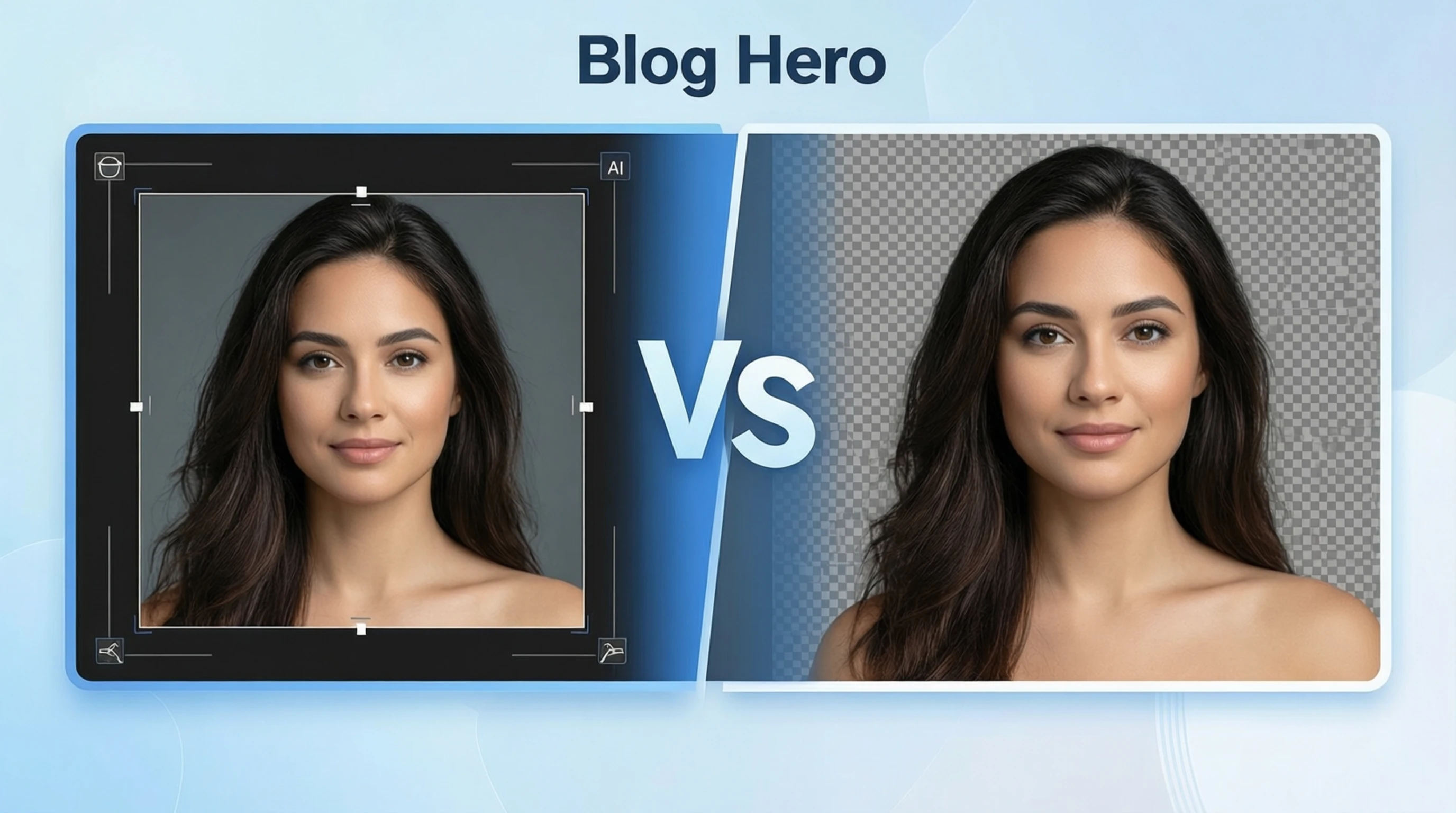
Crop Background: How to Crop and Remove Backgrounds from Photos
Crop Background: How to Crop and Remove Backgrounds from Photos
Many people search for how to crop background from a photo when what they really need is background removal. The two techniques are related but different, and understanding when to use each one will save you time and give you better results.
This tutorial explains the difference between cropping and background removal, shows you how to do both, and helps you decide which approach is right for your project.
Cropping vs Background Removal: What Is the Difference?
These two terms get mixed up constantly, but they describe fundamentally different operations:
| Operation | What It Does | Result |
|---|---|---|
| Cropping | Trims the edges of an image to remove outer areas | A smaller rectangular image — subject + remaining background |
| Background removal | Removes the background behind the subject | Subject only, on a transparent or solid-color canvas |
Cropping
Cropping is like cutting a photo with scissors along straight lines. You select a rectangular area, and everything outside that rectangle is discarded. The background within the cropped area remains untouched.
Example: You have a wide-angle photo of a person standing in a park. Cropping lets you cut out the left and right sides to frame the person more tightly — but the park is still visible behind them.
Background Removal
Background removal is like carefully cutting around the subject with a precision blade. The AI identifies the subject and removes everything else, leaving just the person (or product, animal, or object) on a transparent canvas.
Example: Same park photo, but now the person is completely isolated — no grass, no trees, no sky. Just the person on a transparent background, ready to be placed on any new backdrop.
When to Crop vs When to Remove the Background
Use Cropping When:
- You want to reframe the composition — tighten the shot, remove distracting edges, or change the aspect ratio
- The background is fine but the image has too much empty space around the subject
- You need a specific aspect ratio for a platform (1:1 for Instagram, 16:9 for YouTube, 4:5 for Pinterest)
- You want to remove an unwanted element at the edge of the image (a bystander, a stray object)
Use Background Removal When:
- You need a transparent cutout of the subject for design work
- The background is cluttered, unattractive, or distracting and cannot be fixed by cropping
- You want to place the subject on a different background — white for e-commerce, a branded color, or a new scene
- You are creating stickers, merchandise, logos, or composite designs that require isolated subjects
- Platform requirements demand a clean white or solid-color backdrop (Amazon, eBay, passport photos)
Use Both Together
The most common workflow combines both techniques:
- Remove the background first to isolate the subject
- Crop the result to the exact dimensions and framing you need
This gives you a perfectly framed subject with no unwanted background — the best of both approaches.
How to Crop Background from a Photo: Step-by-Step
If what you need is to remove the entire background (not just trim the edges), here is how to do it:
Step 1: Open the Free Background Removal Tool
Visit Remove-Backgrounds.net in any browser on desktop, tablet, or mobile. No account required.
Step 2: Upload Your Photo
Click the upload area or drag and drop your image file. The tool accepts JPG, PNG, and WebP files up to 50 MB.
Step 3: AI Removes the Background
The AI analyzes your photo, identifies the subject, and removes the background in 2 to 5 seconds. You see a live preview of the isolated subject.
Step 4: Download Your Result
Download the cutout as a transparent PNG. If you also need to crop the result to specific dimensions, use any free image editor (or even the built-in crop tool on your phone) on the downloaded file.
How to Crop an Image (Traditional Cropping)
If you only need to trim the edges of your image without removing the background, you have several options:
On Your Phone
- iPhone: Open the photo in Photos → Edit → Crop icon → Drag the corners
- Android: Open in Gallery or Google Photos → Edit → Crop → Adjust the frame
On Desktop
- Windows: Open in Photos → Edit → Crop
- Mac: Open in Preview → Tools → Crop (after selecting the area)
Online
Most image editors (Canva, Pixlr, Photopea) include a free crop tool. Upload your image, select the crop area, and export.
Combining Cropping and Background Removal for Best Results
Here is the recommended workflow when you need both clean backgrounds and precise framing:
1. Remove the Background First
Always remove the background before cropping. This ensures the AI has the full image context to accurately identify the subject. Cropping first might cut off parts of the subject that help the AI understand the scene.
2. Download the Transparent PNG
Save the background-removed image at full resolution. This is your master file.
3. Crop to Your Target Dimensions
Open the transparent PNG in any editor and crop to your needed aspect ratio:
| Platform | Recommended Aspect Ratio | Pixels |
|---|---|---|
| Amazon product photos | 1:1 (square) | 2000 x 2000 |
| Instagram post | 1:1 or 4:5 | 1080 x 1080 or 1080 x 1350 |
| YouTube thumbnail | 16:9 | 1280 x 720 |
| Pinterest pin | 2:3 | 1000 x 1500 |
| LinkedIn post | 1.91:1 | 1200 x 628 |
| Passport photo | Country-specific | Varies (e.g., 2x2 inches for US) |
4. Add a Background Color if Needed
If your platform requires a solid background (like white for Amazon), add it after cropping. Many editors let you set a canvas color behind the transparent subject.
Common Mistakes When Cropping Backgrounds
Cropping Too Tightly
Leave a small margin around the subject. Cropping right to the edge of a person's head or a product's outline looks cramped and can cut off important details like hair or shadows.
Cropping Before Background Removal
If you plan to remove the background, do it first with the full image. Cropping beforehand reduces the context the AI has to work with and may cut off parts of the subject.
Using the Wrong Aspect Ratio
Each platform has optimal dimensions. Posting a 1:1 image where 16:9 is expected (or vice versa) results in unwanted letterboxing or cropping by the platform itself. Check requirements before you crop.
Saving in the Wrong Format
If your cropped image has a transparent background, save as PNG. Saving as JPG converts all transparent areas to white, which may not be what you want.
Frequently Asked Questions
Is "crop background" the same as "remove background"?
Not exactly. Cropping trims the edges of an image in a rectangular shape, keeping the background within the crop area. Background removal uses AI to identify and remove the background entirely, leaving a transparent cutout. Most people searching "crop background" actually need background removal.
Can I crop and remove the background in one step?
With AI background removal, the background is removed automatically. You can then crop the result to any dimensions you need. Visit Remove-Backgrounds.net to remove the background in seconds, then crop the download in any image editor.
Does cropping reduce image quality?
Cropping removes pixels at the edges of the image, so the result has a lower resolution than the original. However, the remaining pixels are unchanged in quality. If you start with a high-resolution photo, you will still have plenty of resolution after cropping.
What is the best tool to crop background from photos?
For actual background removal (not just edge cropping), use Remove-Backgrounds.net. It is free, requires no signup, and handles the entire background — not just the edges. For simple rectangular cropping, your phone's built-in photo editor works perfectly.
Can I crop backgrounds on my phone?
Yes. For background removal, open Remove-Backgrounds.net in your mobile browser and upload your photo. For simple cropping, use your phone's built-in Photos or Gallery app. Both work without installing any additional apps.
Crop Your Background Now
Whether you need to crop background photos for tighter framing or fully remove the background for a transparent cutout, the right approach depends on your goal. For most people, AI background removal delivers the result they are actually looking for.
Remove Background from Any Photo — Free →
Upload your photo, let the AI isolate the subject, and download a clean cutout ready for cropping, compositing, or direct use. No signup, no watermark, no cost.