Background Remover PNG: Create Transparent PNG Cutouts Instantly
Background Remover PNG: Create Transparent PNG Cutouts Instantly
If you need a background remover PNG tool that produces clean, transparent cutouts without any hassle, you are in the right place. PNG is the gold standard format for images with removed backgrounds because it supports full transparency — something JPG simply cannot do.
This guide covers everything you need to know about using a background remover PNG tool: how to create transparent PNGs in seconds, why PNG is the right output format for cutouts, how it compares to JPG and WebP, and practical tips for getting the sharpest results.
What Is PNG Transparency and Why Does It Matter?
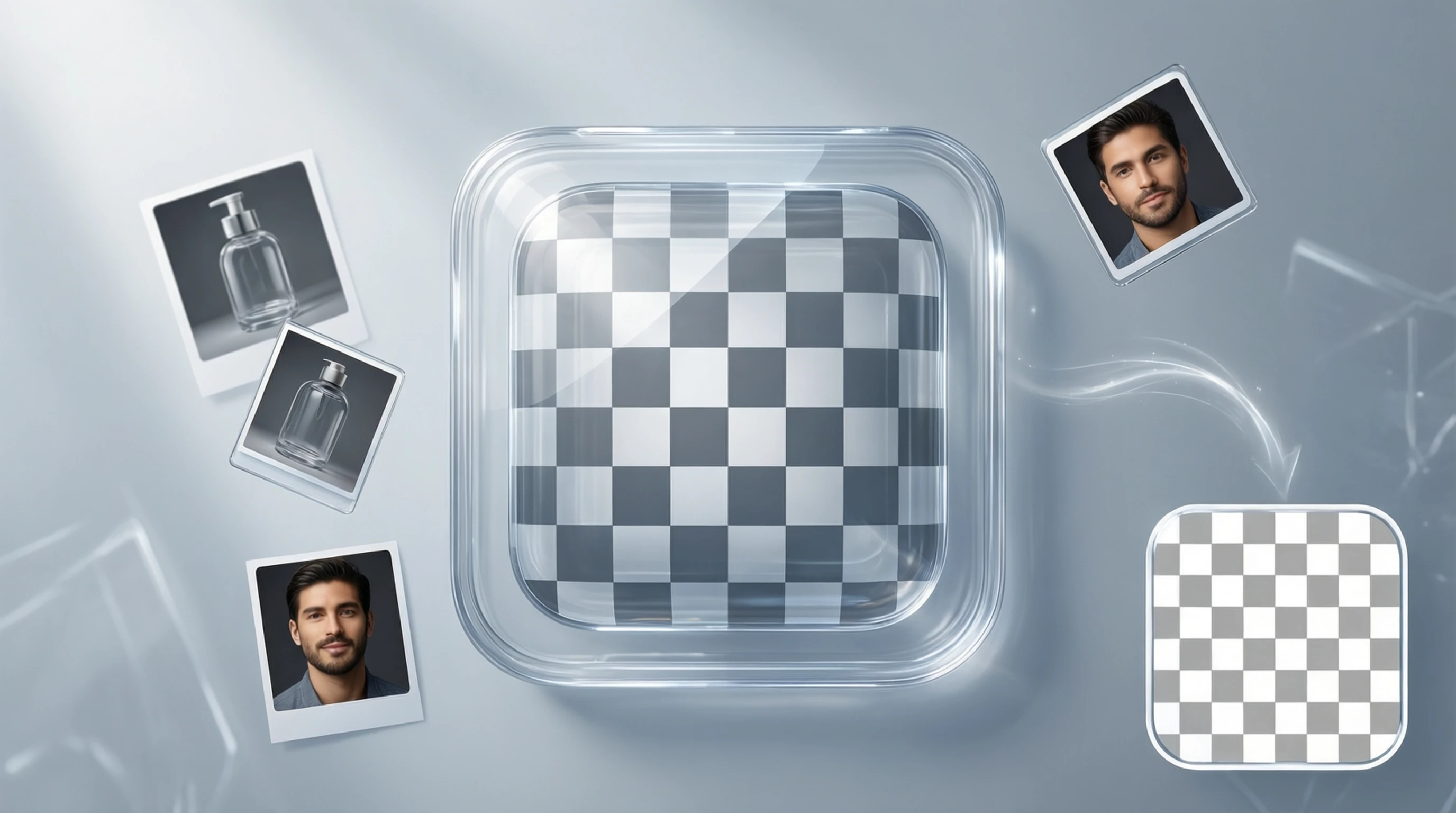
PNG stands for Portable Network Graphics. Unlike JPG, the PNG format supports an alpha channel — a layer of data that defines which pixels are fully visible, partially visible, or completely transparent. This alpha channel is what makes a removed background actually disappear rather than turn white or black.
When you erase background PNG areas from an image, the result is a file where the subject sits on a transparent layer. You can then place that cutout on any background — a colored slide, a website banner, a product listing, or a t-shirt mockup — and the transparency blends naturally with whatever sits behind it.
Without PNG transparency, you are stuck with a white rectangle around your subject. That limits where and how you can use the image. A proper background remover PNG workflow gives you maximum flexibility for every downstream use case.
How to Remove Background of PNG Images in 4 Steps
Using Remove-Backgrounds.net, creating a transparent PNG cutout takes under 10 seconds from upload to download.
Step 1: Open the Background Remover PNG Tool
Navigate to Remove-Backgrounds.net in any browser on any device. No account creation, no app installation, and no signup is required.
Step 2: Upload Your Image
Go to the upload page and drag your image into the drop zone, or click to browse your files. The tool accepts JPG, PNG, and WebP formats up to 50 MB. If your source image is already a PNG, the tool processes it just the same.
Step 3: AI Processes Your Image
Our advanced AI model analyzes the image, identifies the subject, and generates a precise separation mask in 2 to 5 seconds. The AI handles complex edges including hair strands, fur, semi-transparent fabrics, and intricate object outlines. A real-time preview appears so you can see the result immediately.
Step 4: Download Your Transparent PNG
Download the finished cutout as a full-resolution transparent PNG. There are no watermarks, no branding overlays, and no quality reduction. The file retains the original detail of your subject with a perfectly clean alpha channel.
PNG vs JPG vs WebP: Which Format Should You Use?
Not all image formats are created equal. Choosing the right format after you remove background of PNG images depends on where and how you plan to use the result. Here is a direct comparison:
| Feature | PNG | JPG | WebP |
|---|---|---|---|
| Transparency support | Yes (alpha channel) | No | Yes (alpha channel) |
| Compression type | Lossless | Lossy | Lossy or lossless |
| File size | Larger | Smallest | Smaller than PNG |
| Quality preservation | Pixel-perfect | Artifacts at low quality | Good to excellent |
| Browser support | Universal | Universal | All modern browsers |
| Best for | Cutouts, logos, graphics | Photos with backgrounds | Web-optimized images |
| Print compatibility | Excellent | Good | Limited |
| Editing flexibility | High (re-editable layers) | Low (quality loss on re-save) | Moderate |
When to Use PNG
Choose PNG when you need transparency. Product cutouts, logos, overlays, print-on-demand designs, presentation graphics, and any image that will be composited onto another background should be saved as PNG. The lossless compression ensures no detail is lost, making PNG ideal for images that will be resized, re-edited, or printed.
When to Use JPG
Choose JPG for final photographs that include a visible background. If you are sharing a completed composite image on social media or embedding it in a blog post where no transparency is needed, JPG offers the smallest file size. However, JPG should never be your output format when removing backgrounds, because it cannot store transparency data.
When to Use WebP
WebP is a modern format that supports both transparency and smaller file sizes than PNG. It works well for web display but has limited support in older software and print workflows. If your use case is strictly web-based and file size matters, WebP is a strong option. For maximum compatibility, PNG remains the safer choice.
Why PNG Is the Best Format for Background Removal
When you use a background remover PNG tool, the output format matters as much as the AI quality. Here is why PNG is the default and recommended format for cutouts:
- True transparency: The alpha channel preserves exact transparency values, including partially transparent edges that make cutouts look natural
- Lossless quality: No compression artifacts, no blurring, no color shifts — the output matches the original pixel-for-pixel where the subject is preserved
- Universal compatibility: Every image editor, design tool, website builder, and operating system supports PNG without plugins or converters
- Re-editing safety: You can open, modify, and re-save a PNG multiple times without cumulative quality loss, unlike JPG which degrades with each save
- Print readiness: PNG files work directly in print workflows for merchandise, marketing materials, business cards, and signage
Common Use Cases for Transparent PNG Cutouts
E-commerce Product Photos
Online marketplaces require clean product images. A background remover PNG workflow lets you photograph products in any environment, strip the background, and place each item on the white or transparent background that platforms like Amazon, Etsy, and Shopify require.
Graphic Design and Compositing
Designers layer transparent PNG cutouts onto custom backgrounds for posters, advertisements, social media graphics, and website banners. The clean alpha channel ensures subjects blend seamlessly into any composition.
Print-on-Demand Merchandise
T-shirts, mugs, phone cases, stickers, and tote bags all require artwork with transparent backgrounds. Uploading a PNG with a clean alpha channel to print-on-demand platforms like Redbubble, TeeSpring, or Printful ensures the design prints correctly without white rectangles.
Presentations and Documents
Drop transparent PNG cutouts into slide decks, reports, and marketing materials. The subject integrates cleanly with slide backgrounds, themes, and layouts without visual clutter from a rectangular photo border.
Profile Photos and Headshots
Replace a distracting background with a solid color or professional gradient. A quick erase background PNG workflow turns any photo into a polished headshot suitable for LinkedIn, company directories, and business cards.
Tips for the Best PNG Cutout Quality
Upload High-Resolution Source Images
The more pixel data the AI has to work with, the more precise the edge detection. Upload original photos rather than screenshots, thumbnails, or images that have been repeatedly compressed by messaging apps.
Check Edge Detail After Processing
Zoom into the preview to inspect fine edges like hair, jewelry, and thin structures. Our advanced AI model excels at preserving these details, but verifying the preview before downloading ensures you get exactly the result you need.
Use Good Lighting in Source Photos
Even, diffused lighting reduces harsh shadows that can interfere with edge detection. Avoid strong directional light that casts deep shadows behind or adjacent to your subject.
Mind the File Size
Transparent PNG files are larger than JPGs because of the lossless compression and alpha channel data. A single high-resolution cutout might be 5 to 15 MB. If file size is a concern for web use, consider converting to WebP after verifying the PNG quality.
Keep the Full Subject in Frame
Ensure your entire subject is visible within the image boundaries. The AI cannot reconstruct parts of a subject that are cut off by the frame edge. Leave a small margin around the subject for the cleanest separation.
Frequently Asked Questions
What is a background remover PNG tool?
A background remover PNG tool is an application that removes the background from an image and outputs the result as a PNG file with full transparency. The PNG format preserves an alpha channel, which makes the removed background areas genuinely transparent rather than white or colored. This allows you to place the cutout on any background in any design tool.
Can I remove the background from an existing PNG file?
Yes. The tool at Remove-Backgrounds.net accepts PNG files as input along with JPG and WebP. If your source image is already a PNG — even one with an existing background — the AI will process it and output a new PNG with the background removed and full transparency applied.
Is the background remover PNG tool free to use?
Yes. Remove-Backgrounds.net provides free background removal with no watermarks, no mandatory signup, and no hidden fees. You can upload images and download full-resolution transparent PNGs without creating an account or entering payment information.
Why is my downloaded PNG showing a white background?
If you see a white background after downloading, it is likely because the application you are using to view the file does not display transparency. Try opening the PNG in a design tool like Figma, Canva, or Photoshop, or drag it onto a colored background in any image editor. The transparency is there — it just appears as white or a checkerboard in certain viewers.
How large are the output PNG files?
File size depends on the resolution and content of the original image. A typical output PNG with transparency ranges from 2 to 15 MB. The lossless compression preserves every detail without artifacts, which results in larger files compared to JPG. If you need smaller files for web use, you can convert the PNG to WebP format after downloading.
Create Your Transparent PNG Cutout Now
You need a background remover PNG tool that is fast, free, and produces professional-quality transparent cutouts. Remove-Backgrounds.net delivers exactly that: no signup, no watermarks, full HD output, and AI-powered processing that finishes in 2 to 5 seconds.
Upload any JPG, PNG, or WebP image up to 50 MB, and download a clean transparent PNG ready for e-commerce listings, graphic design, print-on-demand, presentations, or any project that demands a perfect cutout.